A level bed is the foundation of every good print. If the gap between the nozzle and the build plate is wrong, the first layer will not stick, and a print that does not stick is a print that fails. This tutorial shows you how to level your bed by hand, how to fine-tune with Z offset and what to do if your printer levels itself.
Why bed leveling matters
Every print starts with a single layer pressed onto the build plate. For that layer to bond, the nozzle must sit very close to the plate, usually about the thickness of a sheet of paper. Too high and the filament lays down like a loose string and peels away. Too low and the nozzle scrapes the plate, the plastic cannot escape and the extruder clicks or clogs.
What you will need
- A clean build plate and a lint-free cloth
- Isopropyl alcohol (or the cleaner your plate maker recommends)
- A sheet of regular printer paper (around 0.1 mm thick) or the feeler gauge that came with your printer
- Your printer’s manual or its on-screen leveling menu
Step 1: Heat the printer first
Metal expands with heat, so level the bed with the nozzle and bed at printing temperature. For PLA, that is around 200 °C for the nozzle and 60 °C for the bed. Let them heat for a few minutes so everything settles. Be careful: both are hot enough to burn.
Step 2: Clean the build plate
Wipe the plate with isopropyl alcohol to remove dust and fingerprints. Skipping this step is the most common reason for first-layer problems that look like leveling problems.
Step 3: Home the printer
Use the menu to send the nozzle to its home position. Then disable the stepper motors (often called “disable steppers” in the menu) so you can move the print head by hand without fighting the motors.
Step 4: The paper test
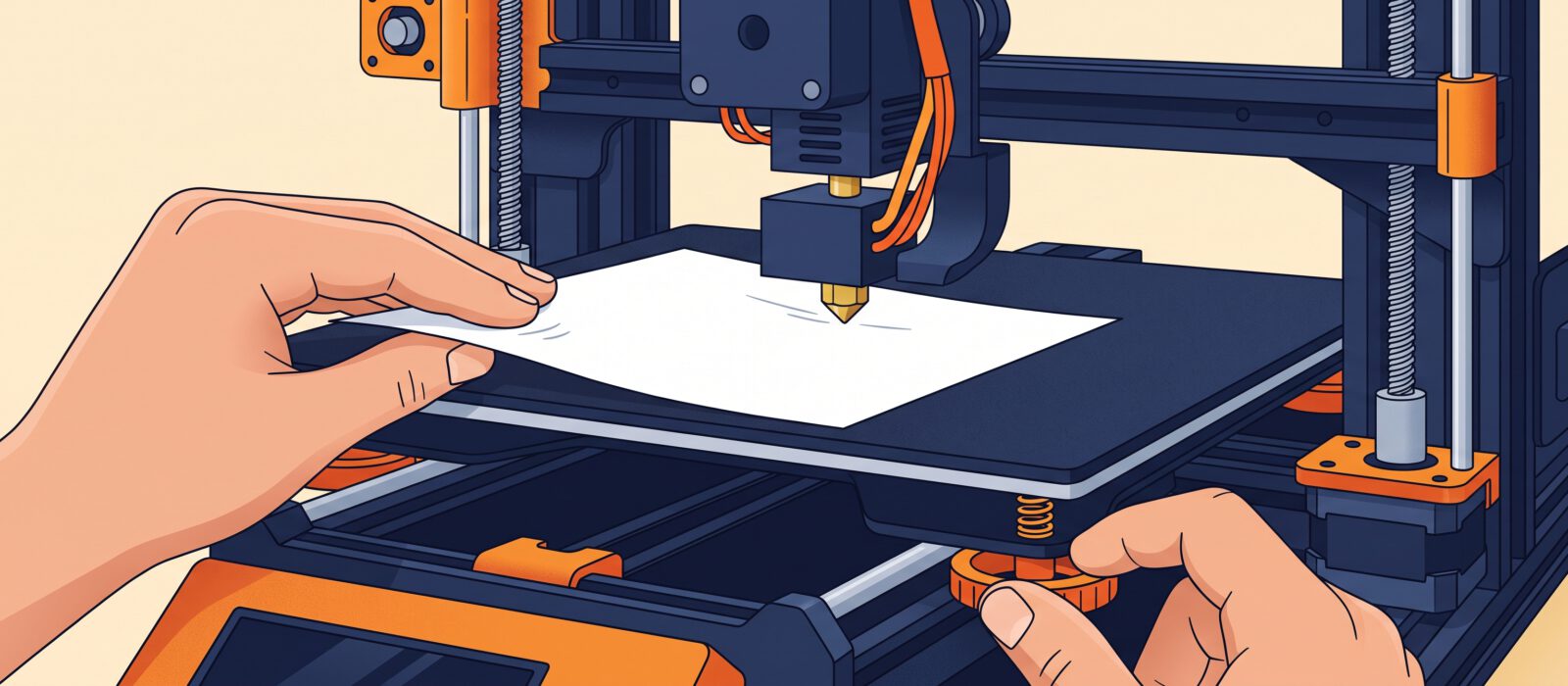
Slide the print head over one of the leveling knobs or corners of the bed. Put the paper between the nozzle and the plate and pull it gently.
- Paper moves freely: the nozzle is too high. Tighten the knob a little to raise the bed.
- Paper will not move: the nozzle is too low. Loosen the knob.
- Just right: you feel light, even resistance, as if the nozzle is gently brushing the paper.
Repeat at each corner, then the center if your bed has no adjustment there. Because adjusting one corner slightly affects the others, do two or three full rounds until all corners feel the same.
Step 5: Check with a first-layer test
Print a wide, thin test, such as a single-layer square or a first-layer test pattern from a site like Printables. Watch it closely:
- Good: lines are slightly flattened, touch their neighbors and form a smooth surface.
- Too high: round lines with gaps between them, or filament that lifts off.
- Too low: ridged, see-through or rough lines, or a clicking extruder.
Adjust your Z offset or knobs a little at a time, using babystepping (live Z adjustment) during the print if your firmware supports it. Very small steps, like 0.02 mm, make a visible difference.
If your printer has automatic leveling
Many modern printers probe the bed and compensate for tilt on their own. You usually still need to:
- Run the auto-level routine whenever you move the printer, change the plate or notice first-layer issues.
- Tune the Z offset, which sets how close the nozzle sits to the plate once the probe has done its work.
- Keep the nozzle clean. Leftover plastic on the tip can throw off probing.
Troubleshooting
- Prints peel off at the corners: clean the plate, check the first layer and consider a brim.
- Left side looks good, right side does not: the bed is tilted. Redo the corners.
- Good at first, then loose after hours: the bed may drift. Tighten leveling knobs and check the frame.
How often should you level?
Check it when you first set up the printer, after moving it and any time prints stop sticking. A well-built printer can go weeks without attention.