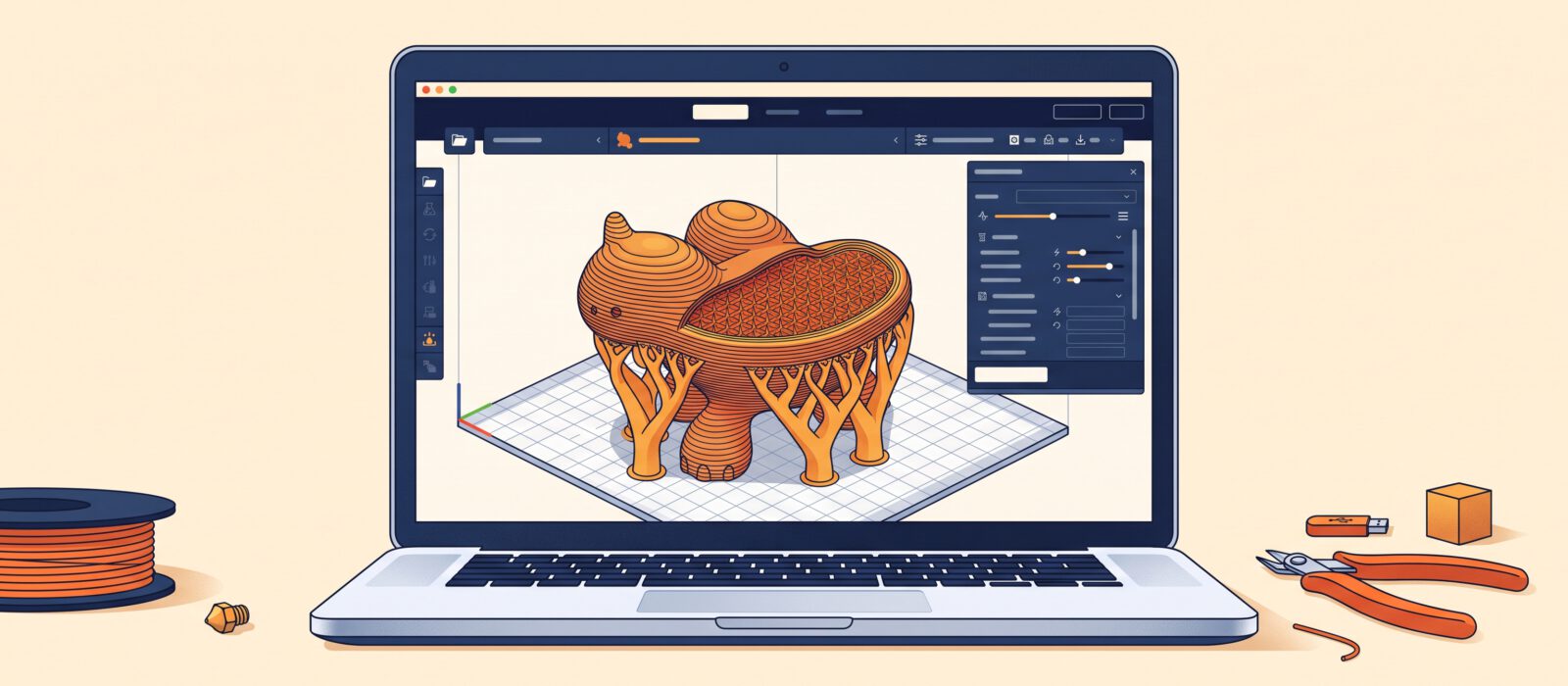
The slicer is where a 3D model becomes a real print. It looks intimidating at first, with dozens of settings, but a handful of them do nearly all the work. This tutorial explains the settings that matter most and gives you sensible starting values.
What a slicer does
A slicer takes your 3D model (.stl or .3mf), cuts it into thin horizontal layers and creates G-code, the instructions the printer follows. Popular free options include Cura, PrusaSlicer, OrcaSlicer and Bambu Studio. They all share the same core settings, though the menus differ.
Start with the right profile
Pick your printer and filament so the slicer loads a tested profile. These profiles set temperatures, speeds and retraction for you. Changing nothing at first is a perfectly good strategy.
The settings that matter most
Layer height
The thickness of each layer. Thinner layers give smoother surfaces but take longer. A good rule is to choose between 25 and 75 percent of your nozzle diameter. With the common 0.4 mm nozzle, that is roughly 0.1 to 0.3 mm.
- 0.28 mm: fast drafts and large functional parts
- 0.20 mm: the everyday balance of speed and quality
- 0.12 mm: detailed models and smooth curves
Walls (perimeters)
The outer shells of the print. Walls contribute more to strength than infill does. Two or three walls suit most prints. Use four or more for parts that will carry loads.
Top and bottom layers
These seal the print. Use enough layers so the top surface is fully closed. For a 0.2 mm layer height, around four to five top layers usually works well.
Infill
The pattern inside the walls. Higher percentages are stronger but use more filament and time.
- 10 to 15 percent: decorative prints, toys and models
- 20 to 30 percent: everyday functional parts
- 40 percent and above: rarely needed. Add walls first
Gyroid and grid patterns are popular choices that balance strength and print time.
Print speed
Faster is not always better. Your profile’s default is a sensible choice. Slower speeds help with detail, overhangs and the first layer.
Supports
Supports hold up parts of the model that overhang or bridge empty space. As a rule, angles steeper than about 45 to 60 degrees from vertical need help. Many slicers offer two types:
- Normal supports: grid-like columns that are quick to build.
- Tree supports: branching structures that touch the model less and are easier to remove.
Before adding them, try rotating the model so that it needs fewer supports.
Build plate adhesion
- Skirt: a ring around the print that primes the nozzle. It does not touch the model.
- Brim: a flat ring attached to the base that helps tall or narrow prints stay put.
- Raft: a thick base layer. Rarely needed and uses more material.
Temperatures
Your filament profile provides these. If a spool’s label gives a recommended range, start in the middle of it.
A beginner-friendly starting recipe
| Setting | Starting value |
|---|---|
| Layer height | 0.20 mm |
| Walls | 3 |
| Top / bottom layers | 4 to 5 |
| Infill | 15 percent, gyroid |
| Supports | Off, unless the preview shows overhangs |
| Adhesion | Skirt or brim |
Use the preview every time
After slicing, drag through the layer slider. Look for gaps, floating parts and thin areas that might fail. Many problems can be spotted here before wasting hours and filament.
Change one thing at a time
If a print goes wrong, resist the urge to change five settings at once. Adjust one setting, test again and write down what happened. Over time you will build a collection of profiles that work for your printer.