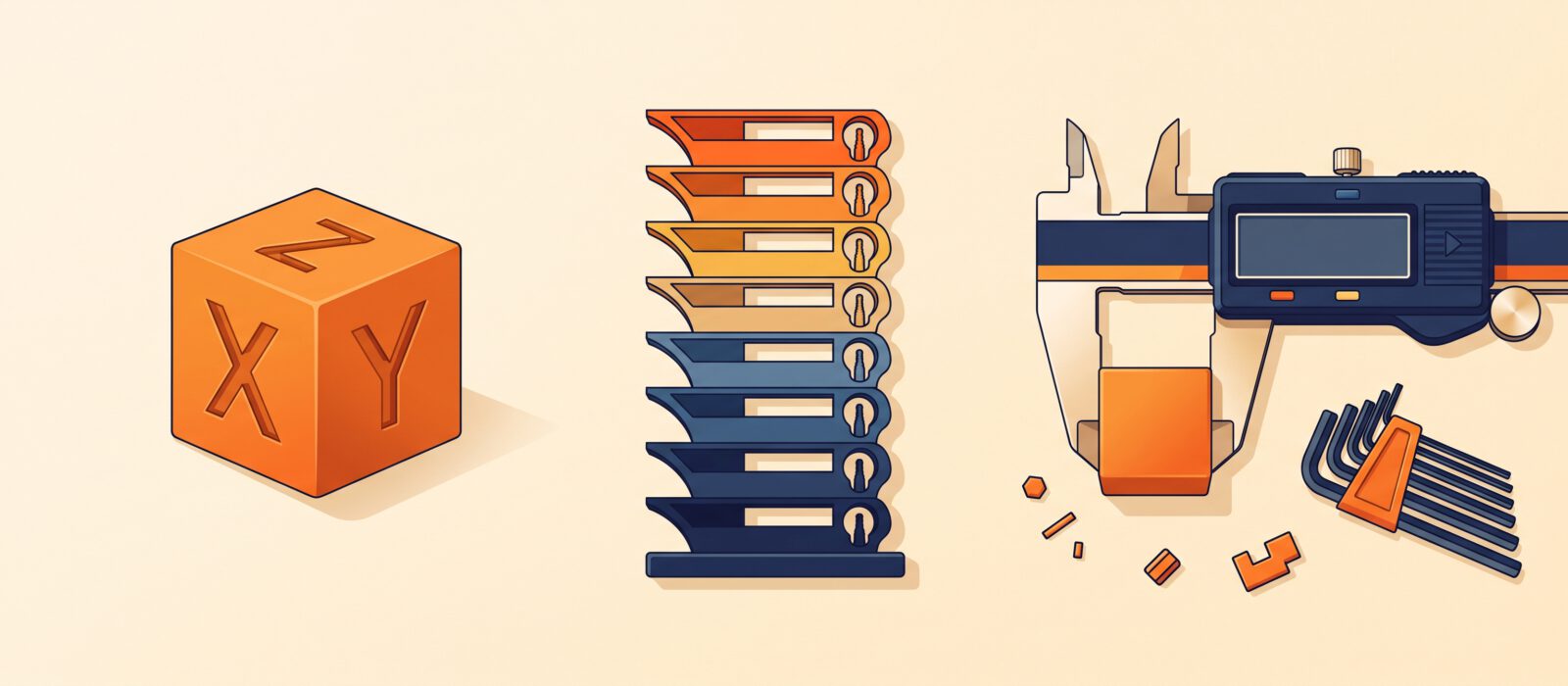
Out of the box, most printers do a decent job. Calibration is how you turn decent into great. It tunes your printer to your specific filament so dimensions are accurate and surfaces are clean. This tutorial covers three easy calibrations that every beginner should do: dimensional accuracy, temperature and flow.
Before you begin
- Check that the bed is level and the first layer is good.
- Clean the nozzle and the build plate.
- Use dry filament. Wet filament makes every test unreliable.
- Change one thing at a time and keep notes.
Calibration 1: Dimensional accuracy with a calibration cube
- Print a 20 mm calibration cube with your normal settings.
- Let it cool fully, then measure each axis (X, Y and Z) with digital calipers.
- Compare with 20 mm. Differences of about 0.1 to 0.2 mm are normal.
If the cube is consistently off, look at the cause before changing anything:
- Slightly small on all sides: the plastic may be shrinking. Adjust the shrinkage compensation if your slicer has it.
- Bulging bottom edge (“elephant’s foot”): the nozzle may be too close or the bed too hot. Use your slicer’s elephant foot compensation or raise the Z offset slightly.
- One axis is wrong: check belt tension and loose pulleys.
Hold off on modifying firmware values unless you are sure. Most beginners never need to.
Calibration 2: Temperature tower
Every filament has a sweet spot. Too hot gives stringing and drooping. Too cold gives weak layers and rough surfaces. A temperature tower prints one tower with sections at different temperatures.
- Download a temperature tower model for your material (search for “temperature tower” on Printables or MakerWorld), or use your slicer’s built-in calibration tool.
- Set the starting temperature near the top of your filament’s recommended range, and lower it by 5 °C every section. For PLA, a common range is 220 °C down to 190 °C.
- Print the tower and examine each section.
Look for:
- Clean overhangs and bridges
- Minimal stringing
- Smooth, glossy-to-matte surfaces without roughness
- Strong layers. Try gently bending a section. It should not snap apart easily between layers
Choose the temperature where the results look best overall and set it as the default in your filament profile.
Calibration 3: Flow rate (extrusion multiplier)
Flow controls how much plastic comes out. Slightly too much gives bulging walls and rough tops. Slightly too little leaves gaps.
- Print a single-wall cube or a flow-test model (many slicers include one, such as the Orca flow rate calibration).
- Measure the wall thickness with calipers at several points and take the average.
- Compare it with the expected line width, which is typically close to your nozzle size or the value set in the slicer.
- If the measurement is off, adjust the flow by the percentage difference, then reprint to confirm.
Tip: make small changes of one or two percent at a time. Good results usually sit between 95 and 100 percent.
Other calibrations to explore later
- Retraction: reduces stringing between parts with a retraction tower.
- Pressure advance: sharpens corners on printers that support it.
- Input shaping: reduces ringing on printers that include it.
Many modern printers handle some of these automatically, so check your manual first.
Save your results
Create a custom filament profile in your slicer for each brand and type, with your tuned temperature and flow. Add notes such as the spool brand and the date. Your future self will thank you the next time you load that spool.