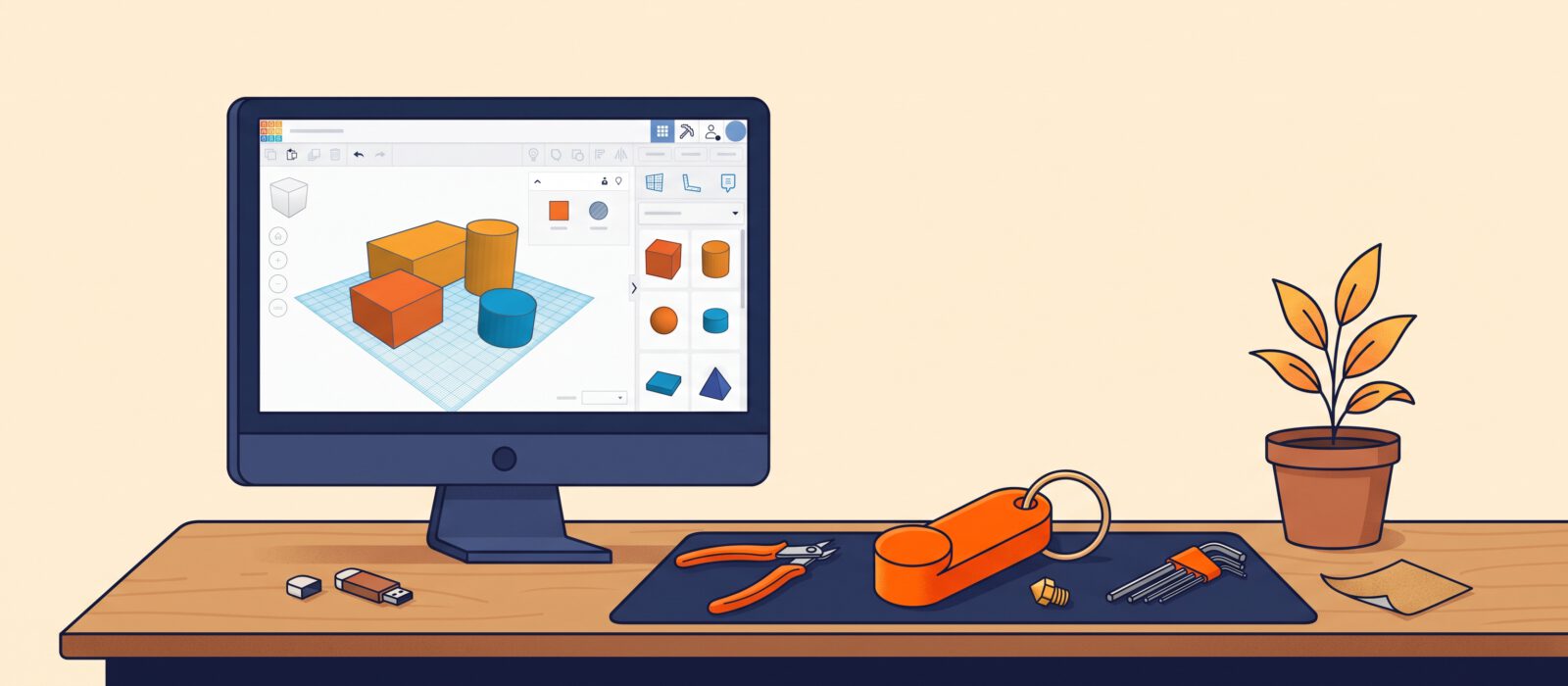
Downloading models is great, but designing your own is when 3D printing becomes truly yours. Tinkercad is a free, browser-based design tool made for beginners. You build objects by combining simple shapes, with nothing to install. In this tutorial you will design a personalized keychain tag and export it for printing.
Getting started
- Go to tinkercad.com and create a free account.
- Choose Create and then 3D Design. You will see a blank blue workplane (the grid).
- Use the right mouse button (or two fingers on a trackpad) to rotate the view and the scroll wheel to zoom.
The key idea: solids and holes
Every shape in Tinkercad is either a solid (adds material) or a hole (cuts material away). Building a model means placing solids and holes, then grouping them. That one idea lets you make almost anything.
Project: a keychain tag
Step 1: Make the base
Drag a Box onto the workplane. Click it and use the white handles or the size fields to set it to about 50 mm long, 25 mm wide and 3 mm tall. Rounded corners look nicer. Increase the corner radius in the shape panel, if available, or use the Round Roof or Cylinder shape to make a rounded end.
Step 2: Add the key ring hole
Drag a Cylinder onto the plane. Make it about 5 mm across and tall enough to pass through the base. In the shape panel, change it from Solid to Hole. Move it near one end of the base. Use the Align tool (the icon in the top bar) to center it vertically against the tag.
Step 3: Add your text
From the shape library, drag in the Text shape and type a name or a word. Set its height to about 1 mm so it is raised on the tag, or set its type to Hole to engrave it instead. Place it on the surface of the tag and use Align to center it. Thick, simple letters print best. Fine, thin fonts can disappear.
Step 4: Group everything
Select all objects (Ctrl or Cmd plus A) and click Group. The hole will cut through the solid, and the text will merge with the base. If something looks wrong, click Ungroup, adjust and group again.
Step 5: Check the dimensions
Click the model and check the ruler values. Real-world sizes matter: you need walls at least two nozzle widths thick (around 0.8 mm for a 0.4 mm nozzle) and details wide enough to print.
Exporting for print
- Click Export in the top right.
- Choose .STL (or .3MF if your slicer prefers it).
- Open the file in your slicer, check the orientation (lay the flat side on the bed) and slice.
Design tips for printable models
- Keep a flat bottom. It sticks to the plate and avoids supports.
- Avoid steep overhangs. Keep angles under about 45 degrees where you can.
- Leave clearance. For parts that fit together, add 0.2 to 0.4 mm of gap so they do not fuse.
- Use thick features. Thin walls and tiny details often fail.
- Save versions. Duplicate your design before making big changes.
Ideas for your next design
- A custom name plate for a desk or door
- A phone stand sized for your phone
- A cable organizer
- A replacement knob or cap for something broken at home
Once you are comfortable, you can try other free tools such as Fusion (free for personal use), Onshape or Blender, which offer more power for complex shapes.